Beta release - Public

Minor Versionm

by Matt P. Lamparter

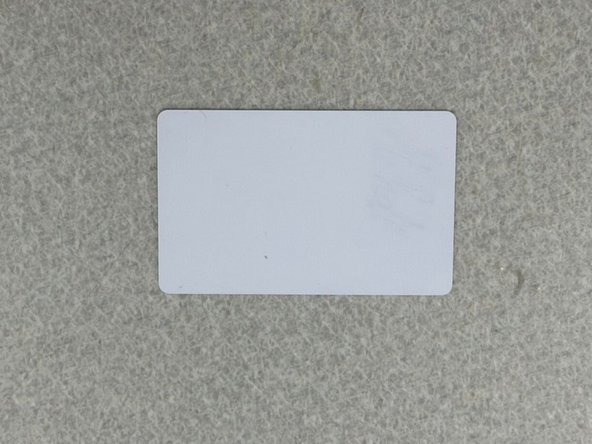
  1. When receiving your makerspace card, the first thing that you'dwant to do is to put your Bucknell username on it. In this way we can easily trace the card back to you if you lose it.
    • When receiving your makerspace card, the first thing that you'dwant to do is to put your Bucknell username on it. In this way we can easily trace the card back to you if you lose it.

    • There are multiple ways to write your bucknell username on your card but in this tutorial we will use vinyl cutters to write your username on it.

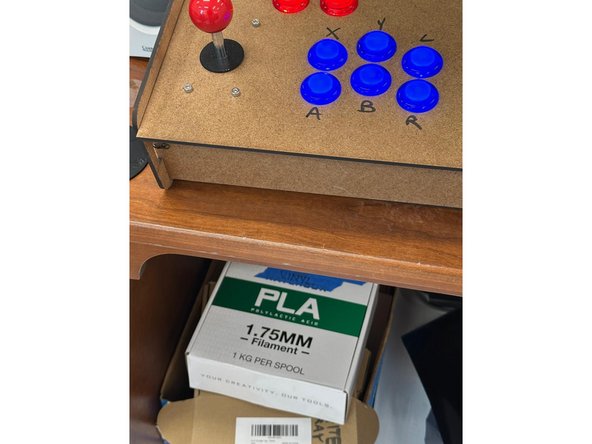
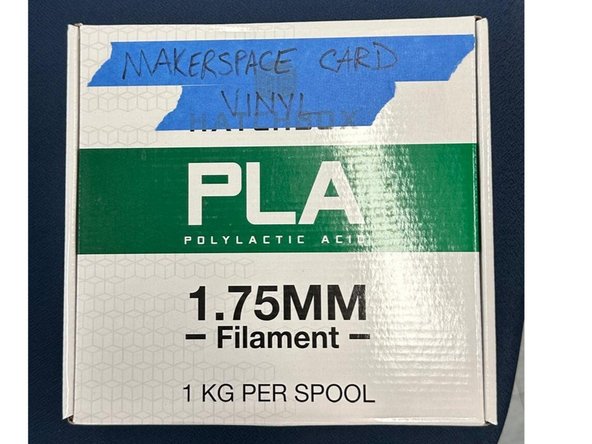
  2. Some vinyls have been cut snd placed in a box named "Makerspace car vinyl". You can find this box under the arcade table. Once you find the box, open it and take the vinyl cut of the color you want. Close the box and place it under the arcade table so that you don't lose it. Once you find the box, open it and take the vinyl cut of the color you want. Close the box and place it under the arcade table so that you don't lose it.
    • Some vinyls have been cut snd placed in a box named "Makerspace car vinyl". You can find this box under the arcade table.

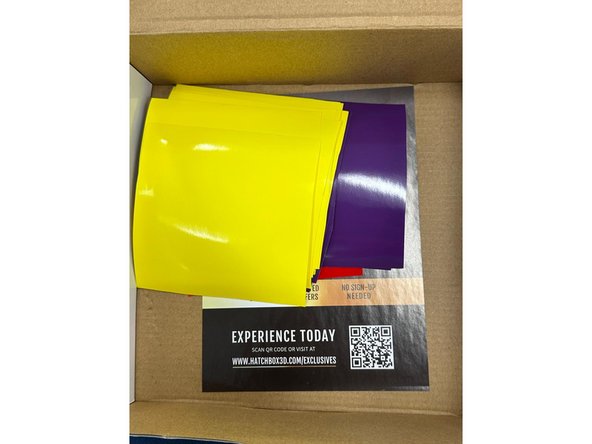
    • Once you find the box, open it and take the vinyl cut of the color you want. Close the box and place it under the arcade table so that you don't lose it.

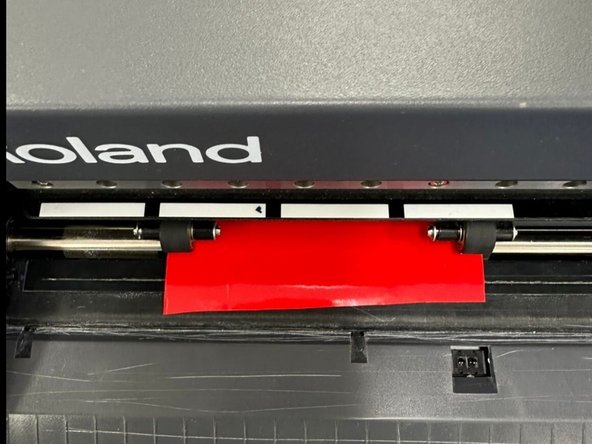
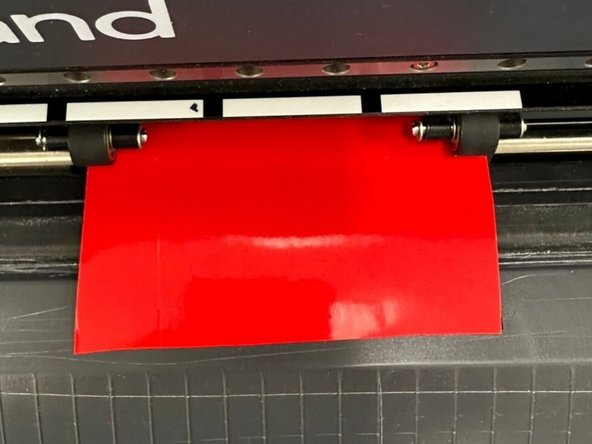
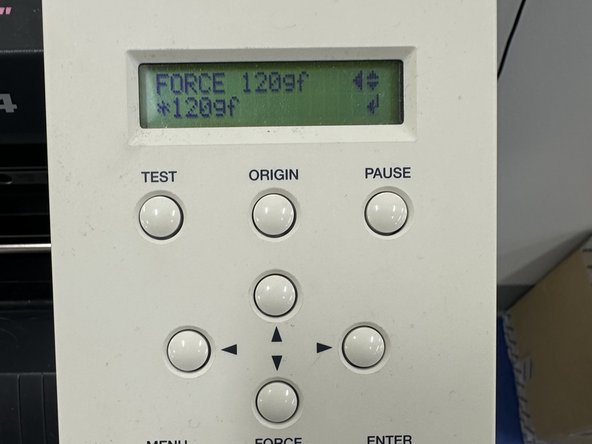
  3. Please check the Vinyl cutter tutorial named "Cutting a basic sticker". Please use the pictures posted as a guide on how to place the vinyl cut and input the right amount of force being 120gf Please check the Vinyl cutter tutorial named "Cutting a basic sticker". Please use the pictures posted as a guide on how to place the vinyl cut and input the right amount of force being 120gf Please check the Vinyl cutter tutorial named "Cutting a basic sticker". Please use the pictures posted as a guide on how to place the vinyl cut and input the right amount of force being 120gf
    • Please check the Vinyl cutter tutorial named "Cutting a basic sticker". Please use the pictures posted as a guide on how to place the vinyl cut and input the right amount of force being 120gf

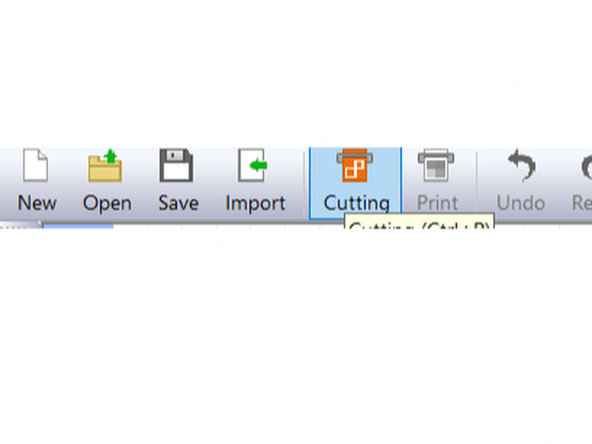
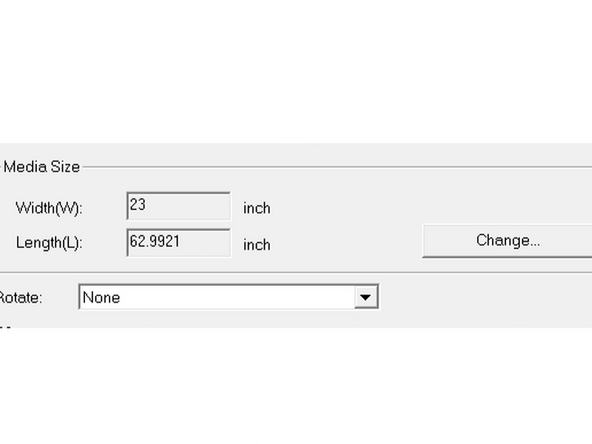
  4. After logging in the makerspace Laptop, you'll find an app named CutStudio. Open the app and look for a taab named "Cutting" click on it and it'll open a tab for you. On the bottom of the tab you'll find a "change" button, Click on it. You'll get another tab where you should locate the "Media Size" press change and then you should get a final tab where you have to press the "Get from machine" (make sure the cutting area change in width and lenght) and then press okay On the bottom of the tab you'll find a "change" button, Click on it. You'll get another tab where you should locate the "Media Size" press change and then you should get a final tab where you have to press the "Get from machine" (make sure the cutting area change in width and lenght) and then press okay
    • After logging in the makerspace Laptop, you'll find an app named CutStudio. Open the app and look for a taab named "Cutting" click on it and it'll open a tab for you.

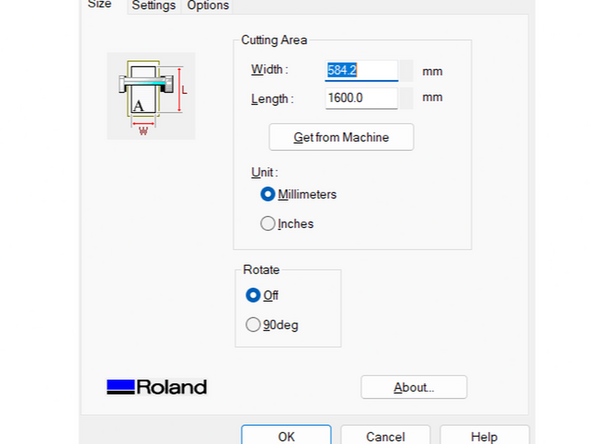
    • On the bottom of the tab you'll find a "change" button, Click on it. You'll get another tab where you should locate the "Media Size" press change and then you should get a final tab where you have to press the "Get from machine" (make sure the cutting area change in width and lenght) and then press okay

    • Now that you have the proper dimensions of the vinyl loaded into the application you can create your name using the Text tool.

    • Be sure to keep the dimensions of your text within reason. The cards measure 3.375" x 2.125" so your text should be smaller than that.

    • When you're satisfied with your text click the Cutting button again. Now press OK and the vinyl cutter should cut out your decal.

    • Follow the end of this guide in order to properly transfer your decal onto your card.

Finish Line

One other person completed this guide.

Makers Service Account

Member since: 3/17/26

1 Guide authored

0 Comments

Add Comment


View Statistics:

Past 24 Hours: 0

Past 7 Days: 0

Past 30 Days: 9

All Time: 10