Introduction
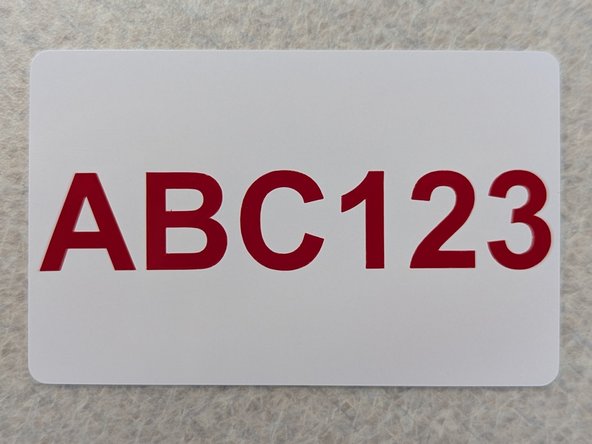
All makerspace cards are required to have a permanent label displaying your Bucknell username. This guide will walk you through quickly using the Maker-E vinyl cutter to add a vinyl decal of your username to your makerspace card.
This guide is a condensed version of the full Vinyl Cutter Guide. You are encouraged to read through that guide if you're interested in going further with the vinyl cutter to work on more involved projects.
-
-
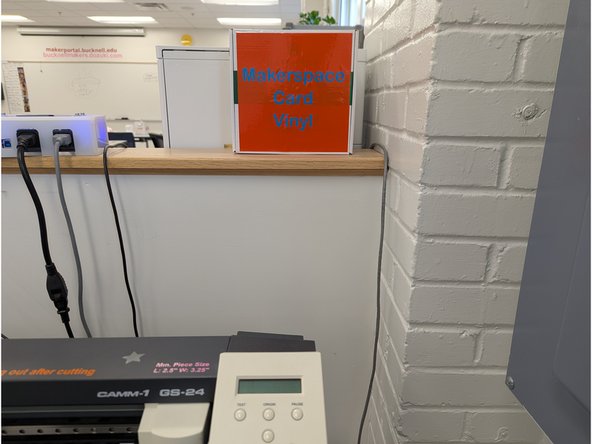
Locate the box of pre-cut vinyl squares used for makerspace cards. These vinyl squares are sized appropriately for use with labeling makerspace cards with your Bucknell username.
-
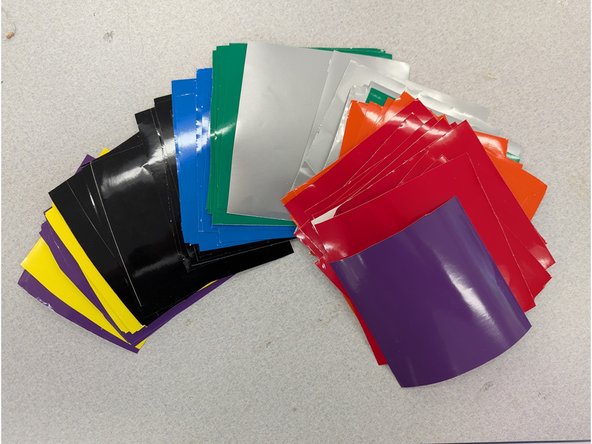
Choose whichever color speaks to you.
-
-
-
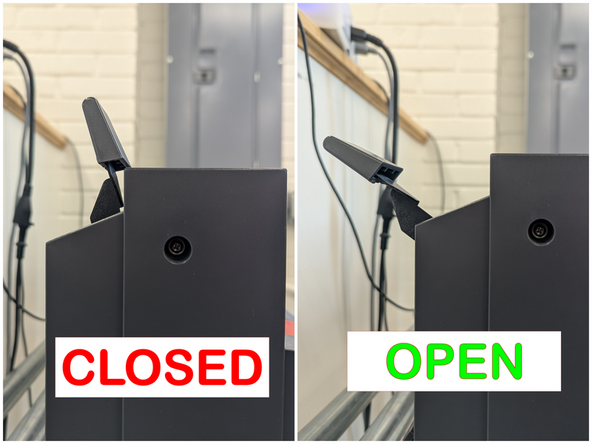
Push the lever arm back to open the vinyl clamp.
-
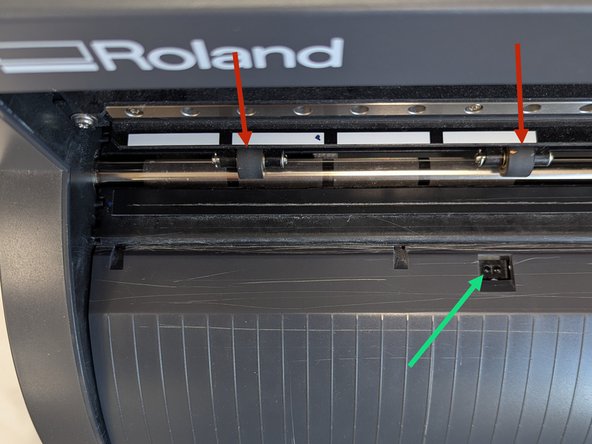
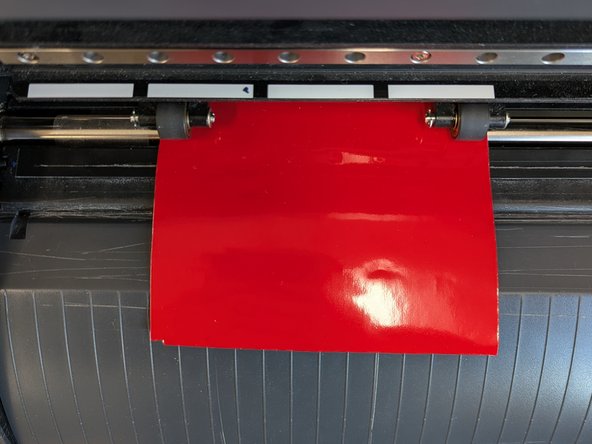
Load your vinyl square into the vinyl cutter. The square should sit between two of the white alignment marks on the left of the vinyl cutter. The vinyl square also needs to cover the optical sensor (called out with an arrow in the second image).
-
Once your vinyl is positioned properly, slide the black pinch rollers between the white alignment marks.
-
Finally, push the lever arm forwards to clamp the vinyl securely in place.
-
Note: if your vinyl does not cover the optical sensor, or if your pinch rollers are not fully positioned within white alignment marks, the vinyl cutter will fail to register your vinyl square.
-
-
-
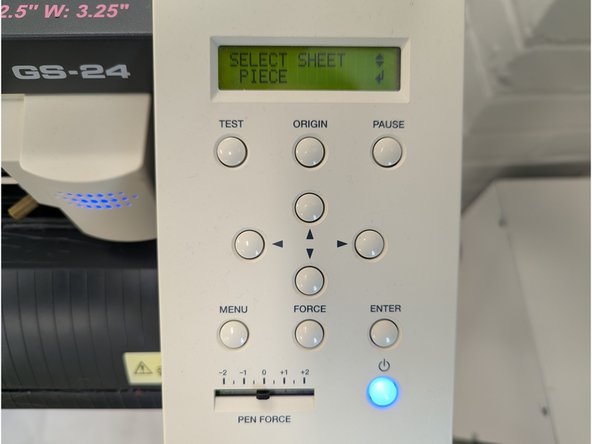
Turn on the vinyl cutter using the blue button. Press the down arrow until the word PIECE is shown on the vinyl cutter display. Press ENTER.
-
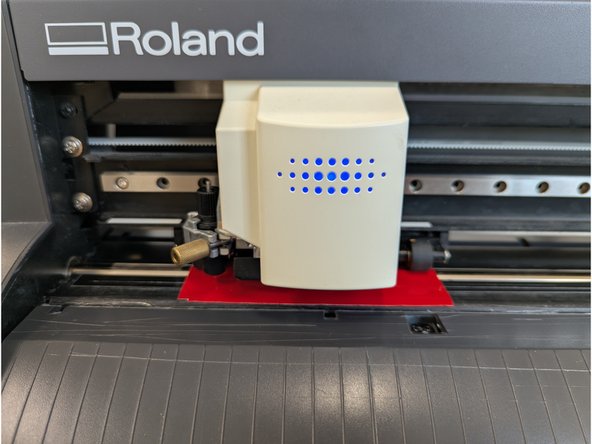
The vinyl cutter head will move to the left. The vinyl will be pulled forward and backwards as the vinyl cutter measures the square.
-
When the measurement process completes the vinyl cutter head will pause and remain in position on top of your vinyl square.
-
-
-
Log into the vinyl cutter laptop with your Bucknell credentials and launch the Roland CutStudio software.
-
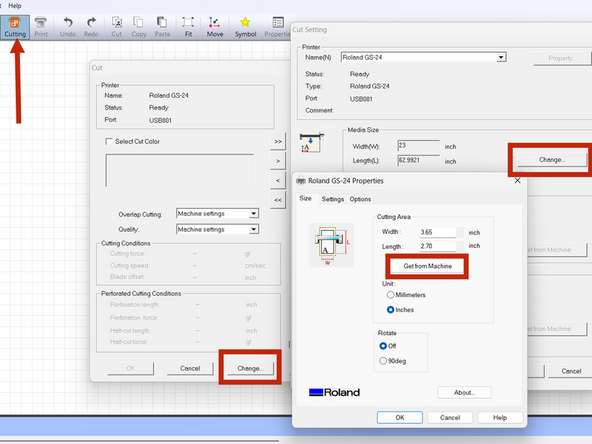
Choose Cutting from the top menu. In the next two windows that appear press the Change button and then another Change button. Finally, press Get from Machine.
-
You should now see CutStudio display dimensions that are around 3.5" x 2.5". Press OK several times to back out of this screen.
-
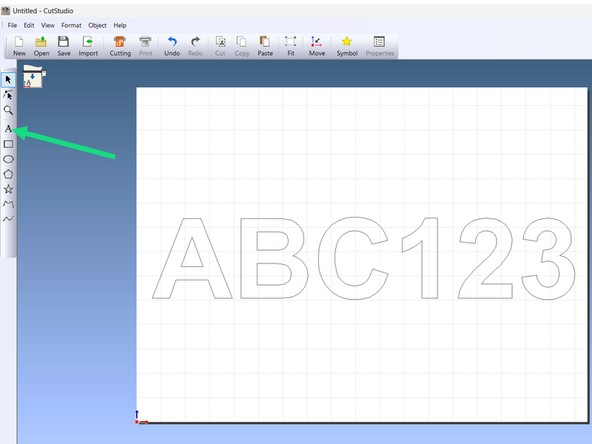
Your should now have a blank white workspace that is the size of a small rectangle. Choose the text tool from the left toolbar and use it to enter your Bucknell username. Try to center your username and make it as large as you can. Hold the SHIFT key on your keyboard if you resize it to maintain the proper aspect ratio.
-
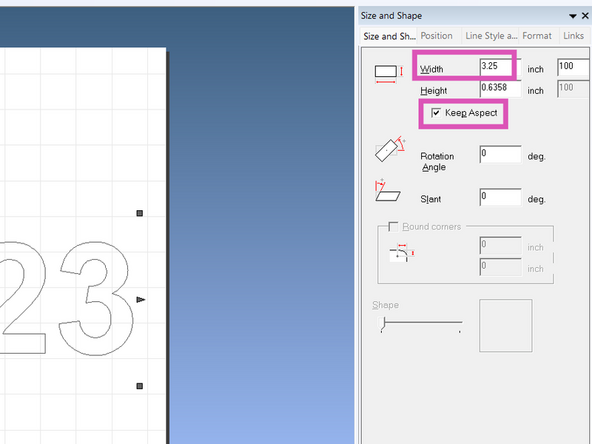
Be sure to keep your text within the maximum dimensions of 3.25" x 2" in order to ensure it fits on your card! You can view your text size in the column on the right. Be sure to click the "Keep Aspect" box before adjusting sizes here.
-
Feel free to change the font if you like but avoid using any fonts that are very skinny or overly decorative or ornate. Look for fonts that are very thick or chunky or wide. These will have the most success when cutting with the vinyl cutter. There is a list of suggested fonts on the laptop keyboard.
-
When you're happy with the username press the Cutting button and then choose OK. The vinyl cutter will begin cutting your decal.
-
-
-
When the cutter stops moving you can push the lever arm back to release the vinyl.
-
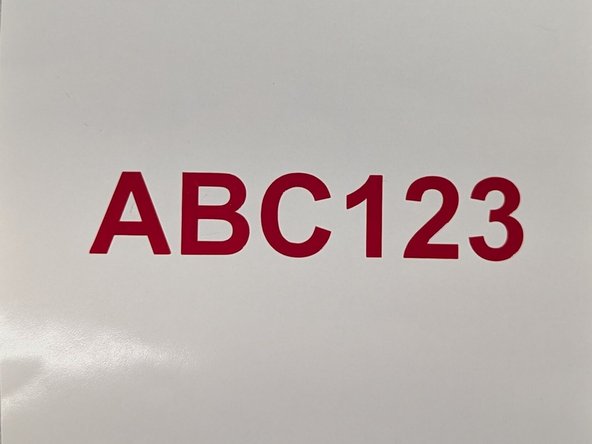
Remove the vinyl square. You now need to "weed" the vinyl: remove all of the excess vinyl you do not want and leave your desired decal behind on the white backing.
-
There are several tools available near the vinyl cutter to help with this process including tweezers and hobby knives. Be careful not to remove the small letters as you're peeling off the large pieces of vinyl. You will also need to be sure to remove tiny bits of vinyl from letters like O, B, P, etc.
-
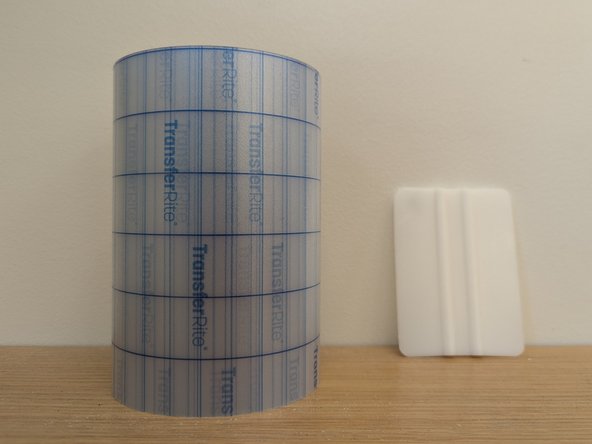
Locate the clear transfer tape and a white plastic squeegee. Cut a section of transfer tape big enough to completely cover your vinyl decal.
-
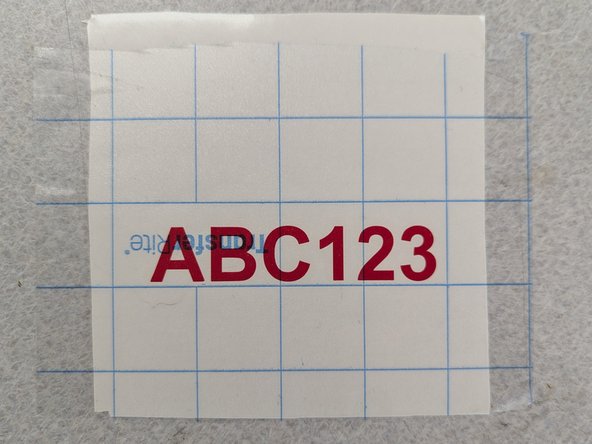
Apply the tape on top of your decal. Try to line up one of the blue alignment lines with your text. This will make it easier to align when you transfer the decal to your card.
-
Use the squeegee to apply uniform pressure across the tape to make sure the transfer tape is securely attached to the vinyl decal underneath.
-
-
-
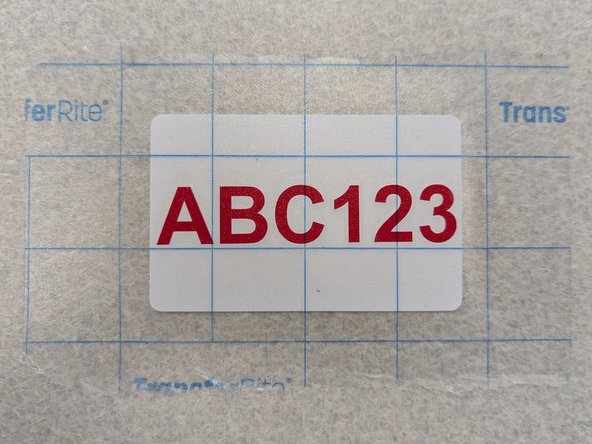
Carefully peel the transfer tape off of the white backing. The vinyl decal should come with it. If the decal does not lift with the transfer tape, pause and lay the tape back down. Reapply uniform pressure with the white squeegee to ensure the transfer tape is firmly pressed against the decal.
-
Using the blue lines on the tape to make sure the text remains horizontal, move your vinyl decal onto your card.
-
Again use the white squeegee to apply uniform pressure across the transfer tape and card to ensure that the vinyl decal adheres to the card.
-
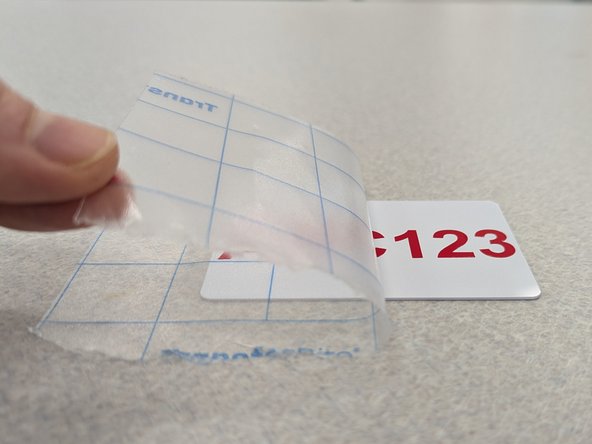
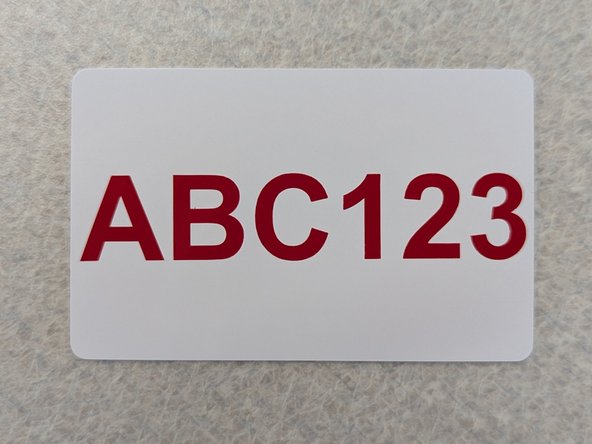
Finally, pull the transfer tape off of the card. Go slowly and try to pull the tape at a 45 degree angle to the card. Watch the vinyl decal to make sure it remains adhered to the card. If the vinyl begins to lift you should stop and reapply pressure with the squeegee.
-
-
-
Congrats on making a rad decal! Now your card can easily be identified and returned to you if it's lost.
-
Please be sure to clean up after yourself when you're done!
-
Throw away all vinyl and transfer tape scraps
-
Log out of the computer
-
Turn off the vinyl cutter
-

Cancel: I did not complete this guide.
2 other people completed this guide.
